What's in the app.
Write 500 Words is built for the long work of a book: a daily writing habit, the manuscript and the notes around it kept close, and a clear way out at the end into the formats publishers and readers expect.
An editor built for long sessions.
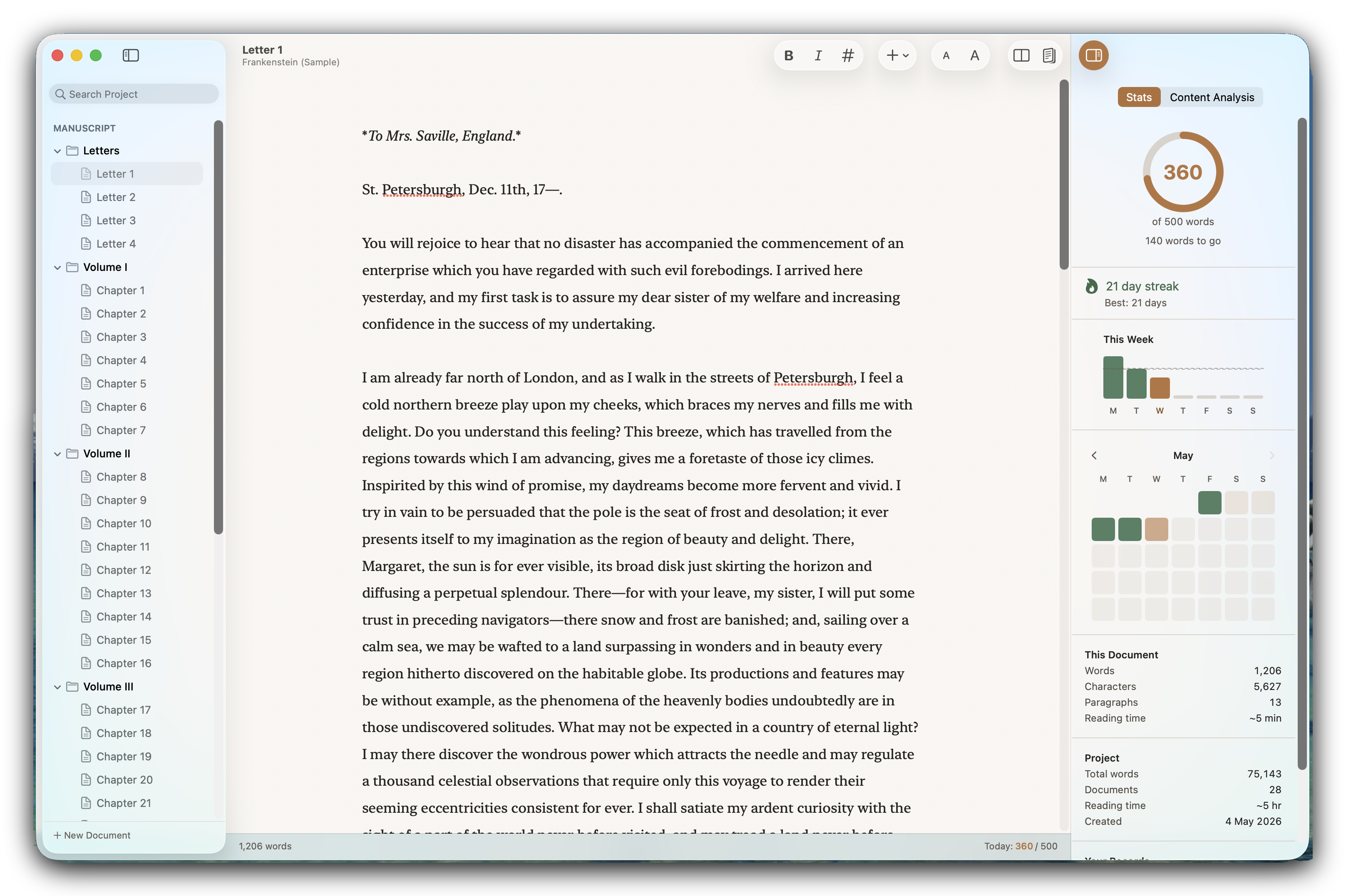
Write 500 Words edits markdown. The line you're working on shows its markup as you type; the moment your cursor leaves the line, it renders. Headings look like headings, emphasis reads as emphasis, and the markup only reappears when you go back for it.
Every common formatting action has a keyboard shortcut, so you never have to type a symbol you don't want to. Pick from seven typefaces, all chosen for long sessions on screen, with a monospaced option if you prefer one. Three focus modes (typewriter scrolling, focus dimming, and a full distraction-free view) are there when you want the page to quieten down.
Structured like a book.
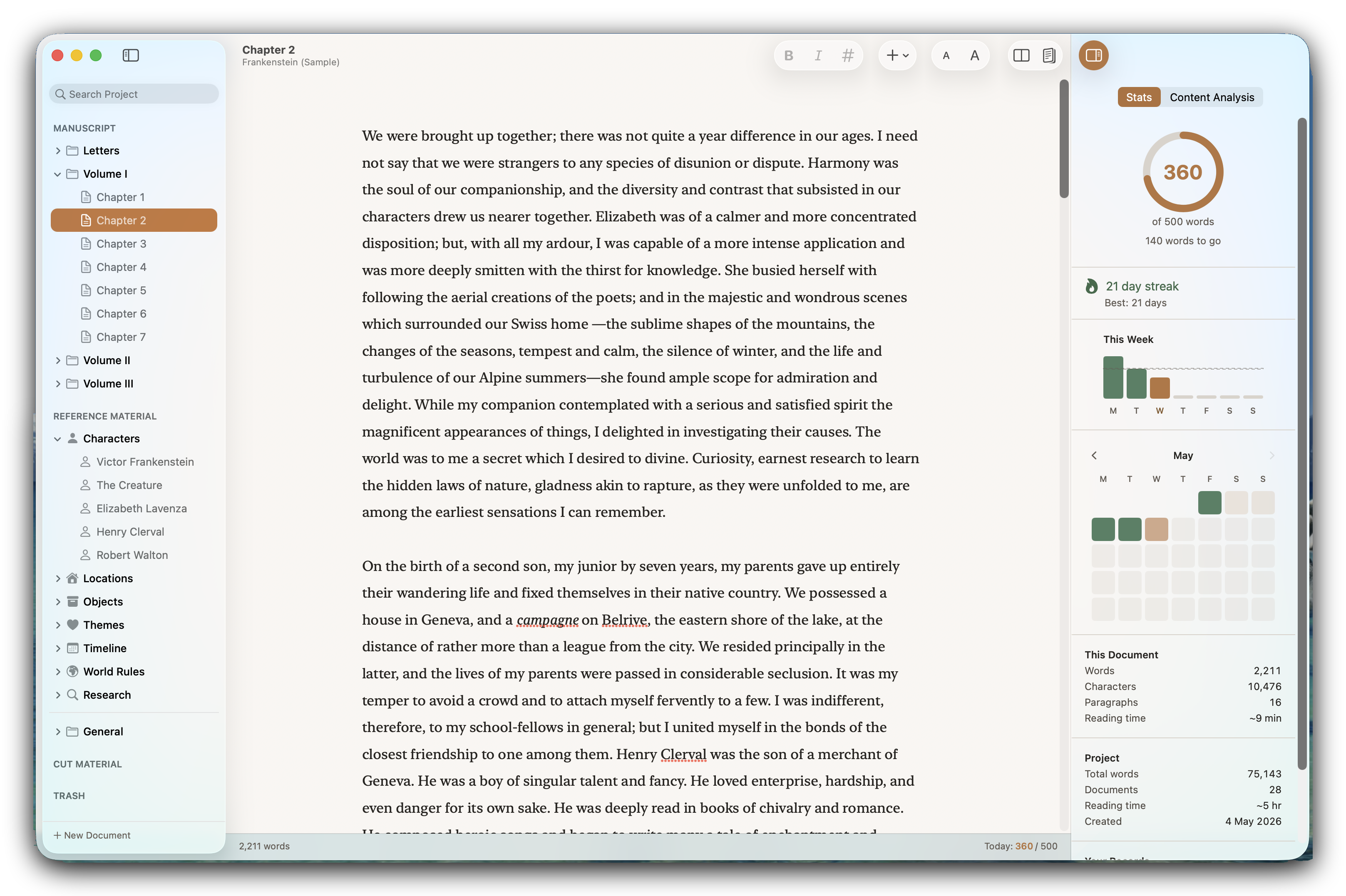
A project keeps the manuscript separate from everything that surrounds it: character notes, research, location sketches, material you've cut but aren't ready to throw away. Each piece keeps its own word count, and none of it crowds the manuscript.
Starter templates cover the most common shapes a book takes (a flat list of chapters, a three-part novel, a three-act structure, or a non-fiction book with appendices), and you can always begin from a blank slate instead. A full sample project (the complete text of Jane Austen's Pride and Prejudice) is included so you can see what a finished project looks like before you build your own.
A home for all your projects.
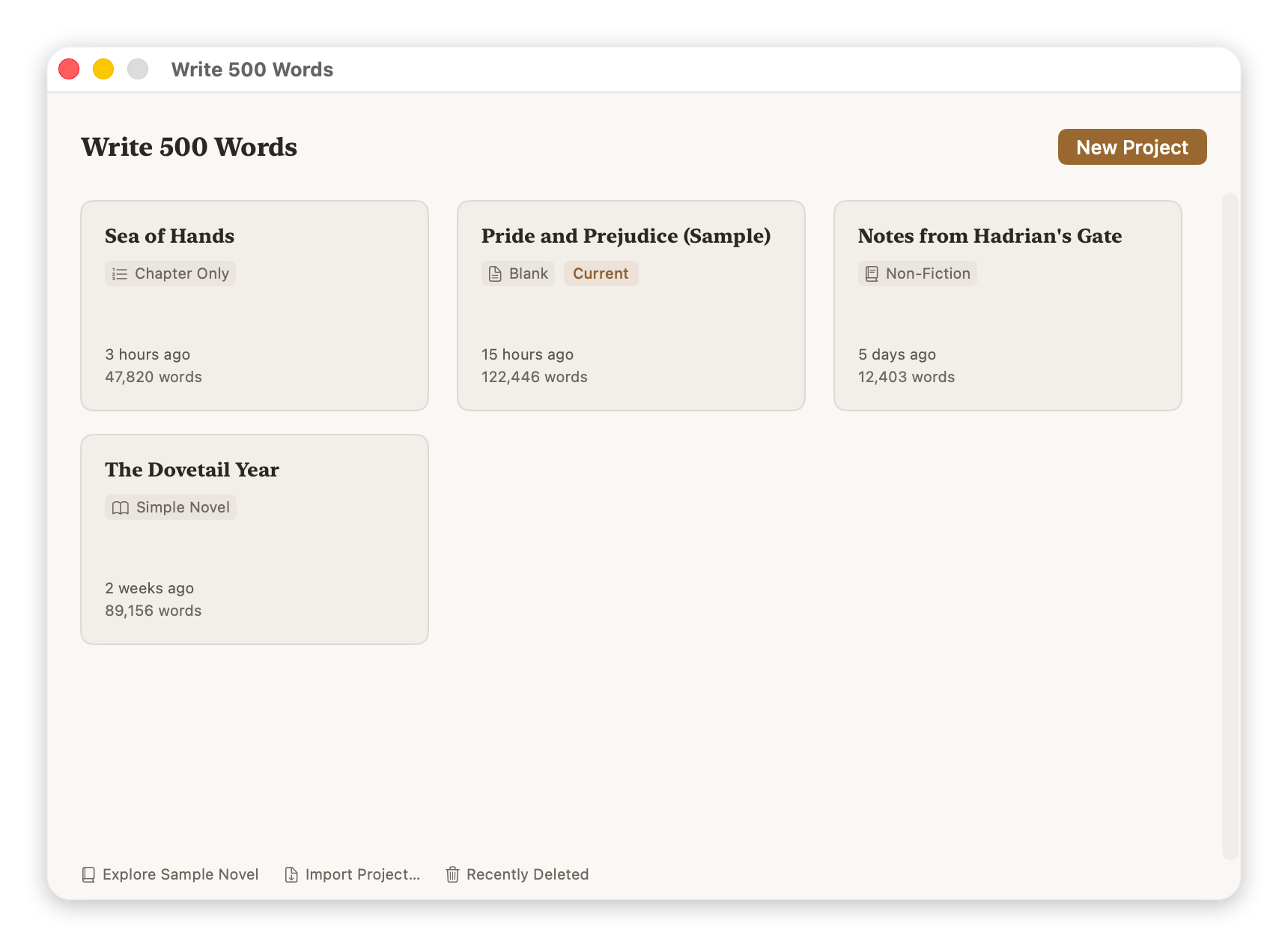
The Project Library is where you open, create, and manage your books. Start a new project from one of the starter templates (Simple Novel, Chapter Only, Three-Act Structure, or Non-Fiction), begin from a blank slate, or open an existing one. Projects you delete move to the Bin rather than disappearing, where they stay for 7, 14, 30, 60, or 90 days, or indefinitely if you prefer. You can copy any document from one project into another, which keeps the source project unchanged while the destination gains a clean duplicate.
Bring your existing work in.
If you have a draft already, you don't have to start over. Write 500 Words imports DOCX files from any word processor, plain markdown files, and plain text files. Drag them into the sidebar or use File, Import File. Each imported file becomes a document in the current project, with its text intact and ready to continue.
A daily target that holds steady.
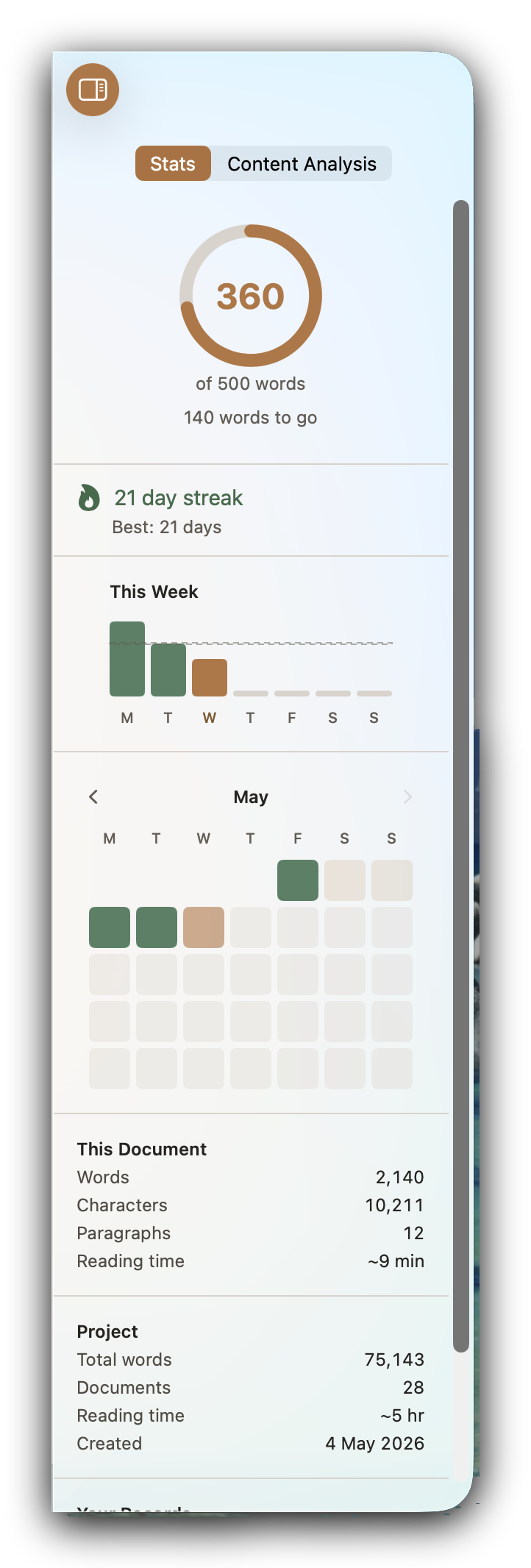
Five hundred words a day is the default, since it's the number the app is named after, but you can set your own, change it between projects, or turn targeting off altogether and keep the rest of the statistics. While you write, a ring fills towards the day's number; under it sit your streak, the week's bars, and a calendar heatmap of the month, so you can see the habit holding without going looking for it.
Rest days cover the weeks that don't go to plan. Pick the weekdays you don't expect to write, a weekend say, and the streak skips over them instead of breaking. If you write on a rest day anyway, it counts.
Content Analysis holds a mirror up.
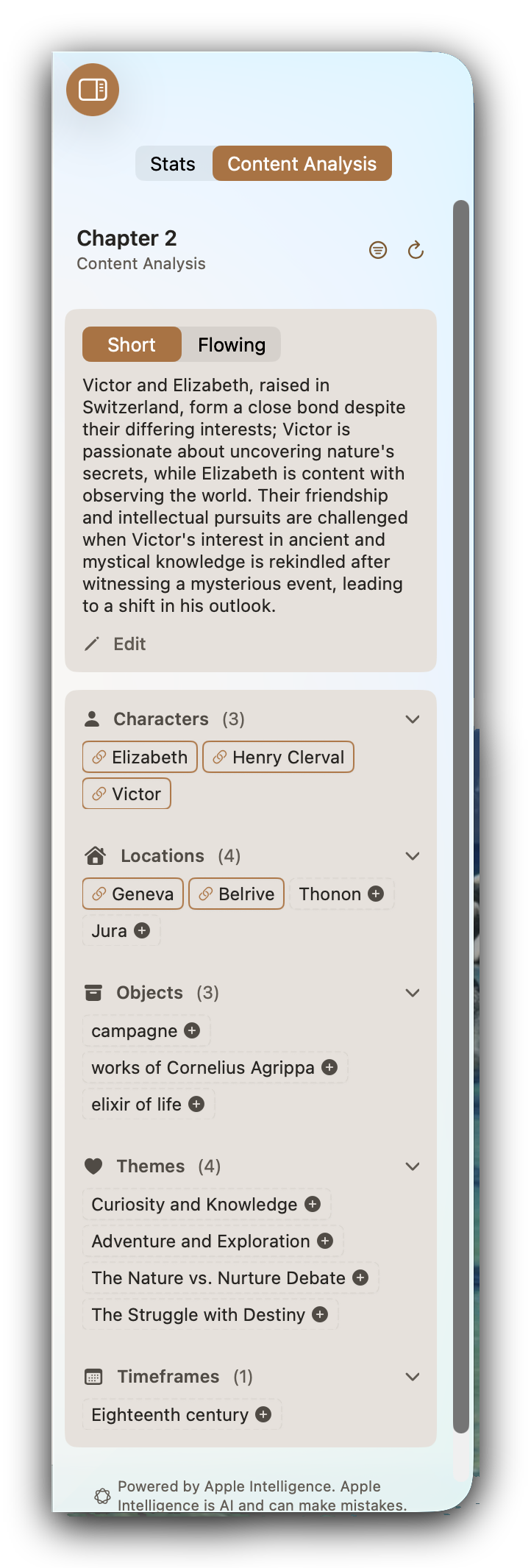
Content Analysis reads what you've written and gives you two things: a synopsis of the document or the whole manuscript, either a few lines or a longer prose summary, and a list of the people, places, objects, themes and dates you've mentioned. It doesn't write any prose for you.
Everything runs on-device through Apple Intelligence, so the manuscript never leaves your Mac. Switch the feature off entirely if you'd rather; the rest of the app works the same either way.
When you're done, a guided way out.
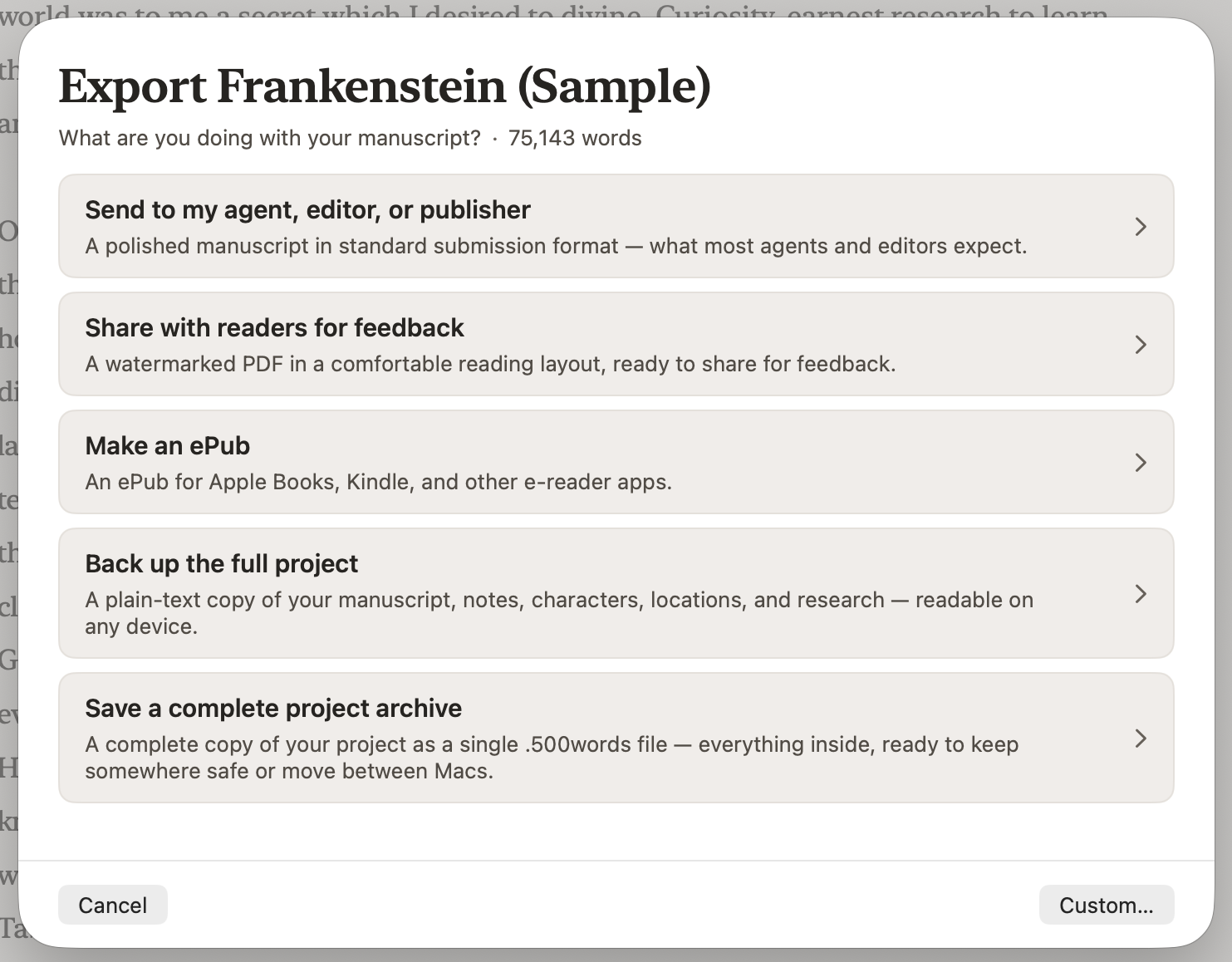
Export runs as a plain-language wizard rather than a settings sheet. It asks what kind of export you're doing (sending to an agent, sharing with readers, making an ePub, backing up the project, or something more specific), then walks one question at a time, with a live preview on the right and a closing screen at the end instead of a confirmation dialog.
Underneath sit the formats: DOCX (with a manuscript-format preset, the layout agents and publishers expect), PDF, ePub (with a cover you can configure), and markdown. The custom route never locks you out of any combination, so an unusual job has a way through too.
Built for the long haul.
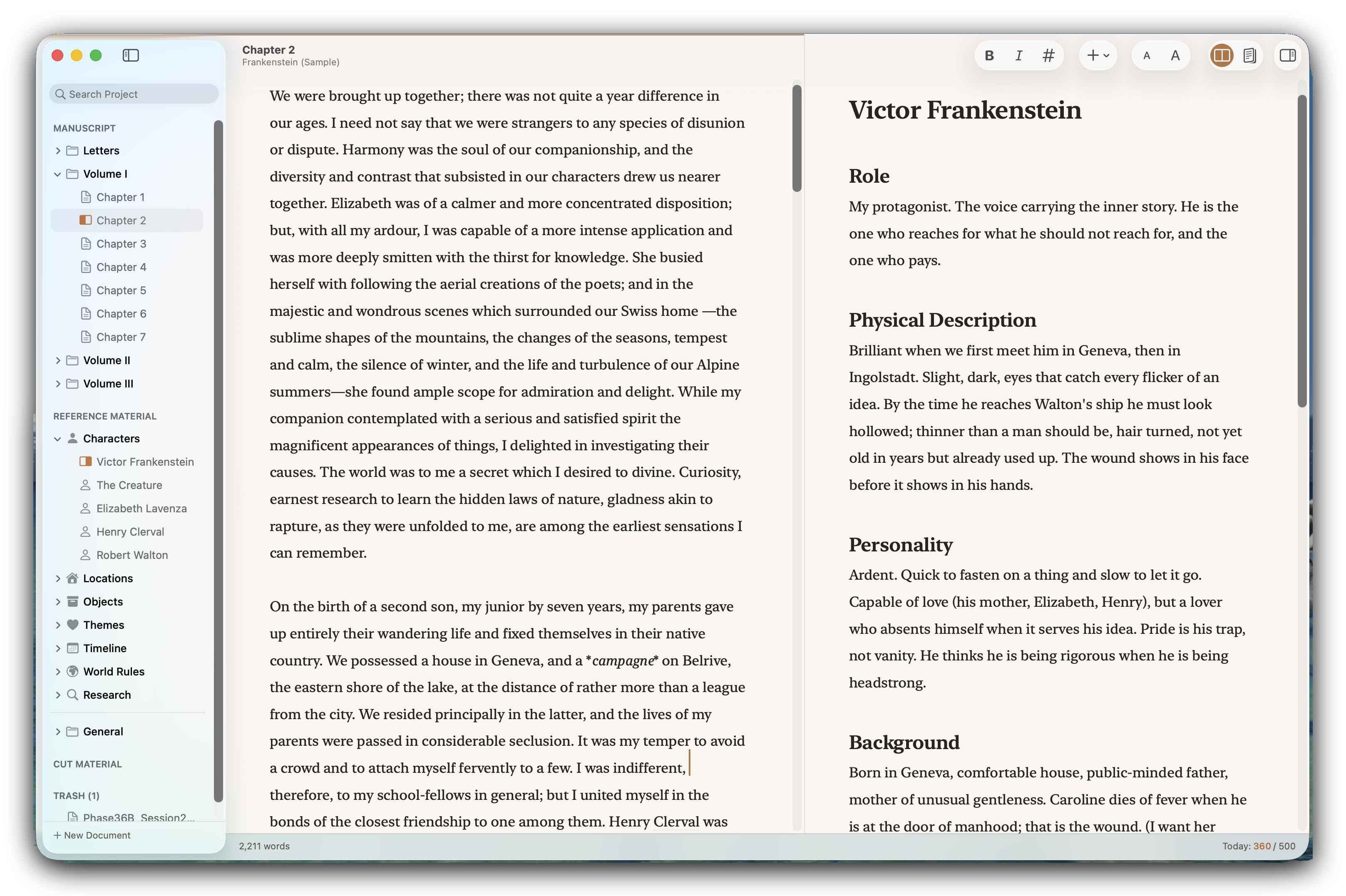
A book runs to tens of thousands of words across dozens of documents, so search reaches across the whole project rather than the open file. A side-by-side split editor lets you write in one pane and reference another, and a read-only reading mode renders the whole manuscript as finished prose when you want to see it that way. There are eight themes, five for daylight and three for late-night sessions.
Your files, in plain text.
A Write 500 Words project is a folder of markdown files with a small index file that records how they're arranged. Saved continuously while you write, so there's no Save button to forget about. Because the format is plain markdown, your words are readable on any computer, in any text editor; the writing is never locked inside this one app. Your projects sync via iCloud and follow you across every Mac signed in to the same Apple Account. No account or server is involved, and the file format is plain text from beginning to end.
Every version, always recoverable.
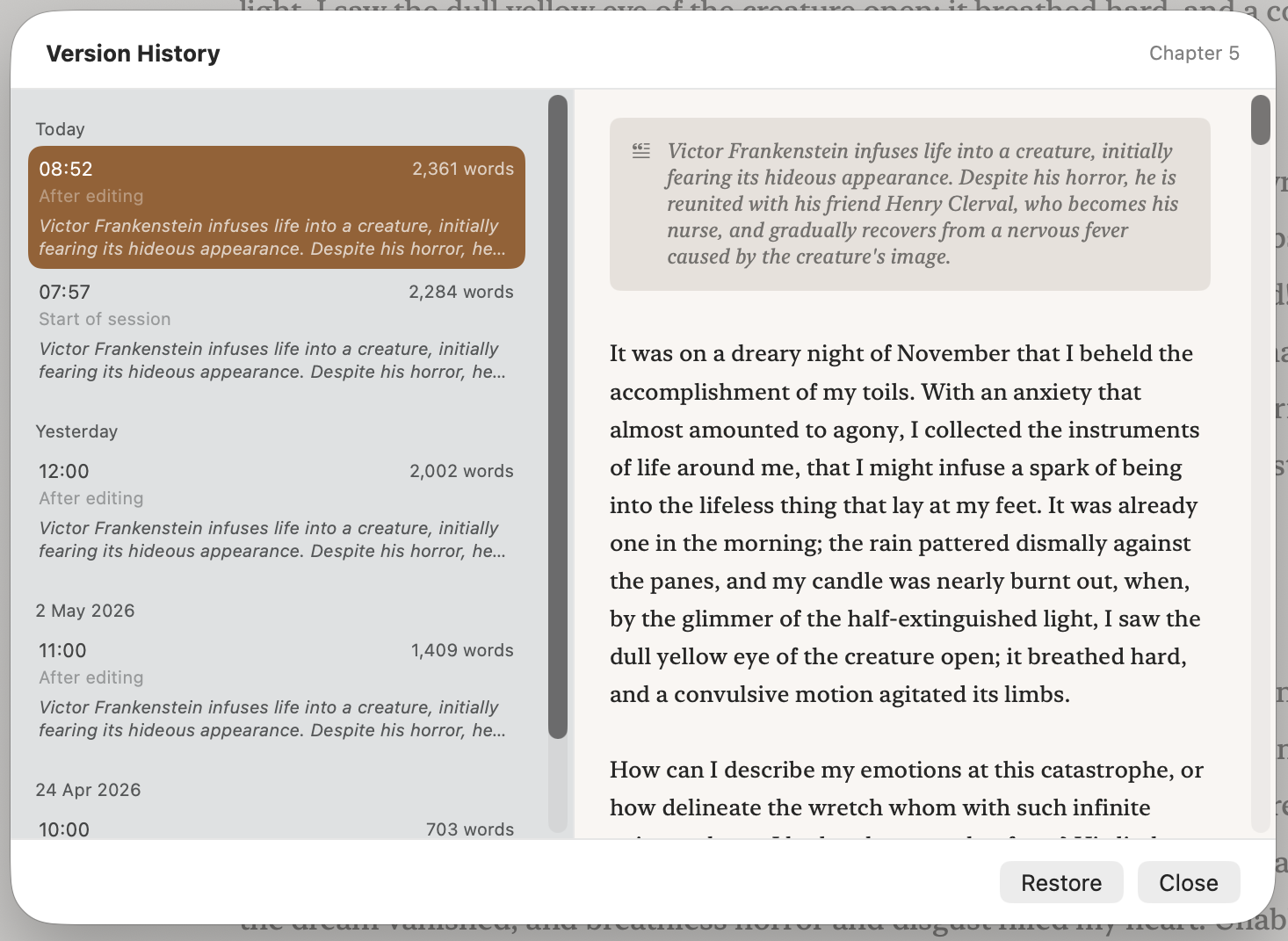
Write 500 Words versions your documents automatically as you write. There's no manual save and nothing to remember. Recent versions are kept every few minutes; older ones thin out to once a day, then to once a week, so storage stays manageable. If you wrote something yesterday and want it back today, it's there. Each version carries the synopsis Content Analysis produced at that moment, so you can see at a glance what a past version contained before you restore it.
Try it free for 14 days.
Write 500 Words starts with a 14-day free trial. No credit card and no account. Every feature is available from the first launch: you get the full app, not a limited version. The trial runs for 14 calendar days from your first launch; reinstalling doesn't reset it.
When the trial ends, the Project Library restricts to read-only access. You can still reach every word you wrote: from the restricted Library, save any project as plain text files to a folder of your choice, so the writing is always yours to take. A single purchase unlocks the app permanently for every Mac on your Apple Account, with Family Sharing included. More about how the trial works →
What you need to run it.
- macOS 26 Tahoe or later. Written for the current system.
- Apple Intelligence (optional). Required for Content Analysis. Every other part of the app works identically with it off.
- iCloud Drive (optional). With iCloud Drive turned on for your Mac, your projects sync through it and follow you to every Mac signed in to the same Apple Account. On a single Mac it isn't needed, and the app works the same without it.
The app is built for accessibility from the start: full keyboard navigation, VoiceOver support, colour contrast that meets WCAG 2.1 AA, and an in-app interface-scaling preference that applies across the whole app rather than just the editor. See the accessibility statement for the full picture.